
Real case from our workshop · July 2026
A customer walked into SISTEMAS RJD with a PC that "had always thrown the occasional blue screen", but ever since updating to Windows 11 and refreshing every driver it had become unusable: BSOD after BSOD with the code PAGE_FAULT_IN_NONPAGED_AREA (0x50). Everything pointed to the RAM… and it was not the RAM. This is the complete, step-by-step diagnosis of an Intel Core i7-14700K degraded by the defect known as Vmin Shift Instability.
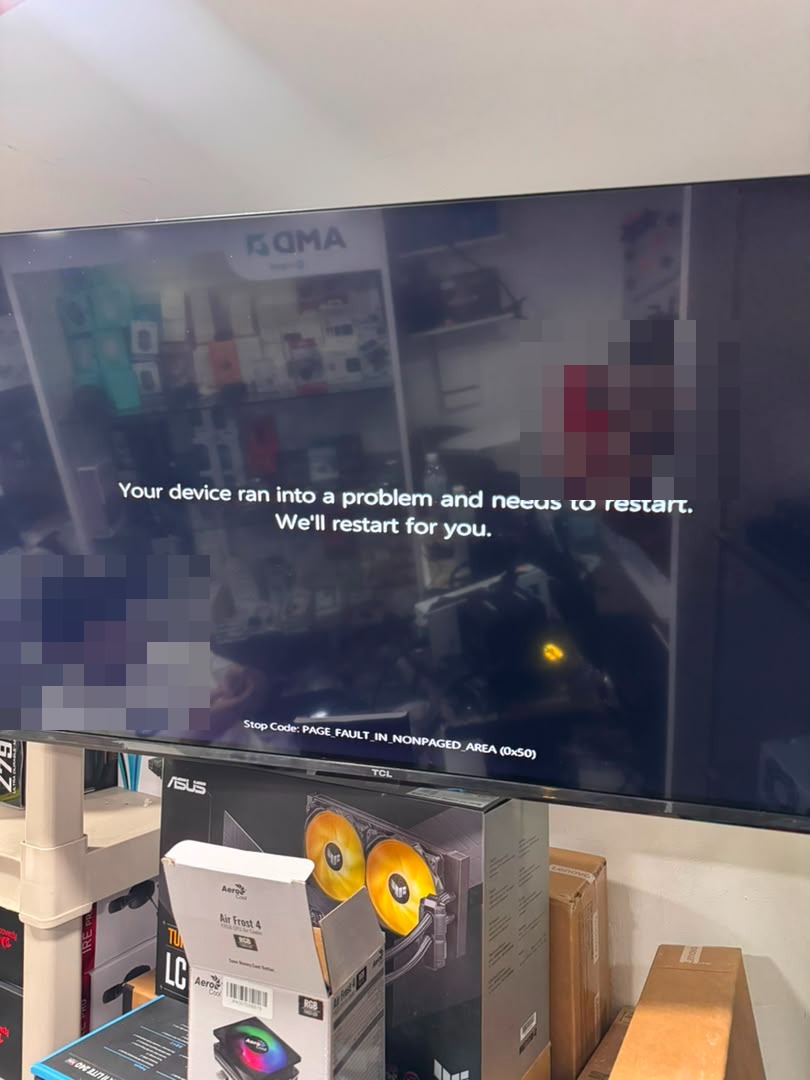
The screen that started it all: BSOD 0x50 on the customer’s PC, at our workshop.
The hardware in this case
| CPU | Intel Core i7-14700K (Raptor Lake Refresh) |
| Motherboard | ASUS TUF Gaming Z790-Plus WiFi |
| RAM | 32 GB DDR5 (2 modules) |
| SSD | XPG Gammix S70 Blade (M.2 NVMe) |
Why error 0x50 fools everyone
PAGE_FAULT_IN_NONPAGED_AREA means the system tried to access an invalid memory address. The technician’s handbook says: faulty RAM, a badly seated module, unstable XMP or a corrupt driver. And 90% of the time, that is correct.
But since 2023-2024 there is a new suspect producing exactly the same codes: Intel 13th and 14th Gen desktop CPUs affected by Vmin Shift. These errors smell like RAM but are born in the processor’s own memory controller.
The key clue: BSODs caused by a degraded CPU get worse over time. They start sporadic and become persistent. Faulty RAM tends to fail consistently from day one.
The diagnosis, step by step
- Rule out the basics: reseat the RAM, try the recommended slots (A2/B2) and reset the BIOS (which also disables XMP). The BSOD persisted even during a clean Windows install.
- Read the POST screen: the BIOS detected the full 32 GB and the SSD without issues. Nothing abnormal.
- CPU cross-test: we removed the i7-14700K and installed an i5-12400 (12th Gen, not affected by the defect) on the same board, with the same RAM and the same SSD.
- Conclusive result: with the i5-12400 the system formatted, installed Windows 11 and ran with total stability. Only the CPU changed.

The board’s POST screen: BIOS 1805, 32 GB detected and the SSD in order.
Elimination logic: if the RAM, board or SSD were the problem, the failure would have continued with the i5-12400. It did not. Diagnosis: degraded CPU.
The root cause: Vmin Shift Instability
Intel officially confirmed the cause: a faulty microcode algorithm requested elevated core voltages, especially at idle or under light load. That sustained overvoltage physically degrades the silicon in a cumulative and irreversible way. The Windows 11 update did not cause the damage: it exposed it, by demanding more from an already deteriorated chip.
The corrective microcode updates
| Microcode | Date | What it fixes |
|---|---|---|
| 0x125 | Jun 2024 | eTVB bug |
| 0x129 | Aug 2024 | Caps voltage requests above 1.55 V |
| 0x12B | Sep 2024 | Includes the previous ones + fixes elevated idle voltages |
| 0x12F | May 2025 | Reinforcement for continuous light workloads |
Important: the microcode is preventive, not corrective. A CPU that already shows instability has permanent physical damage and must be replaced under warranty.
Recommended BIOS for the ASUS TUF Gaming Z790-Plus WiFi
The latest version is 1836 (May 2026), which includes all the corrective microcode. Download it from the official ASUS support page and flash it with EZ Flash 3 from a FAT32 USB drive, always from the BIOS (never from Windows).

The board in this case: ASUS TUF Gaming Z790-Plus WiFi.
Affected models and extended warranty
Intel’s official list covers the i5-13600KF through i9-13900KS and the i5-14600KF through i9-14900KS, including all K, KF and KS chips plus several 65 W+ non-K models. Intel extended the warranty to 5 years in total, valid worldwide. Boxed CPU: RMA directly with Intel. Tray CPU or prebuilt system: through the seller.
Bonus: 4 mixed DDR5 sticks = black screen
On the same machine we tried to expand the RAM by adding two 16 GB modules to the two 32 GB sticks that ran perfectly at 6000 MHz. Result: no video. Dead board? No — it is expected DDR5 behavior, for four reasons that stack up:
- Mixed kits: 32 GB modules are dual-rank and 16 GB ones single-rank. The controller cannot train such asymmetric signals. Manufacturers warn about it: do not combine kits, not even of the same model.
- Daisy-chain topology: these boards are electrically optimized for 2 modules. With 4, signal integrity degrades.
- The CPU’s IMC: the real spec with 4 DIMMs drops to the 3600-4400 MHz zone. Asking for 6000 with mixed modules is more than double the demand.
- Leftover XMP: if the 6000 MHz profile is still stored in the BIOS, memory training fails before video ever comes up. Fix: clear CMOS with all 4 modules installed and wait up to 10 minutes for training.
Our recommendation: a stable 2x32 GB at 6000 MHz beats a dubious 96 GB mix at 4000 MHz. If you need more capacity, the right path is a single validated kit (for example 2x48 GB).
Quick checklist: is it the RAM or a Raptor Lake?
- Is the CPU a 13600K–13900KS or 14600K–14900KS? Suspicion activated.
- Did the BSODs get progressively worse? Points to CPU, not RAM.
- Does MemTest86 pass clean but the BSODs continue? Almost confirmed.
- Definitive test: swap in an unaffected CPU. If the system stabilizes, case closed.
Is your PC blue-screening and you don’t know why? At SISTEMAS RJD we run this full diagnosis. Contact us.